
Simplify & Streamline Your AP – Eliminate Data Entry
Receive Vendor Invoices and Post it as Bills in QuickBooks
- Receive vendor invoices online
- Post vendor invoices as Bill to QuickBooks
- Online approval option
- Attachment, Notes can be added to invoices
- Track document history
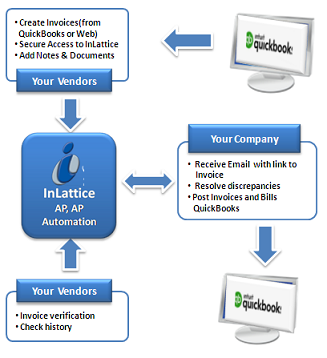
The process includes registration, one time setup of vendor accounts, receiving vendor invoices and posting bills to QuickBooks.
- Register with InLattice
- Download and install the free QuickBooks Web Connector file – When you login first time, the below screen gives the link to download QuickBooks Web Connector file
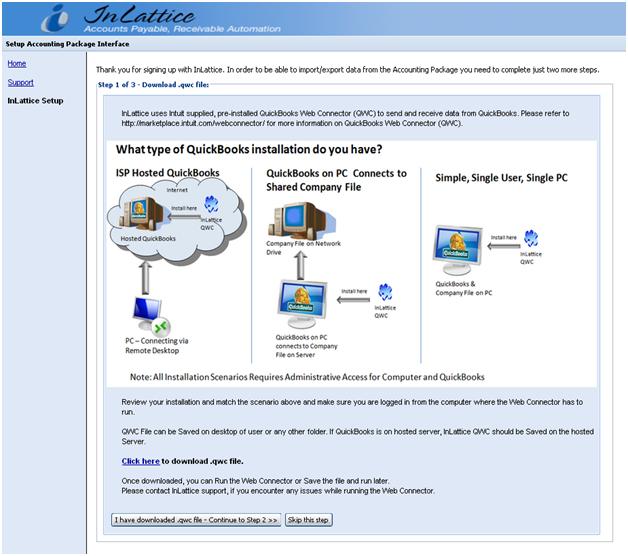
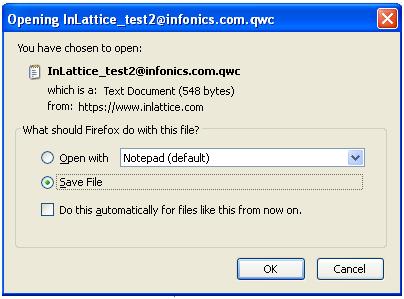
On click of “click here” your browser’s file download dialog box is brought up. When this box appears, choose “Ok”, and put the file somewhere on your computer where you can easily find it, such as on your desktop. This is the InLattice application file.
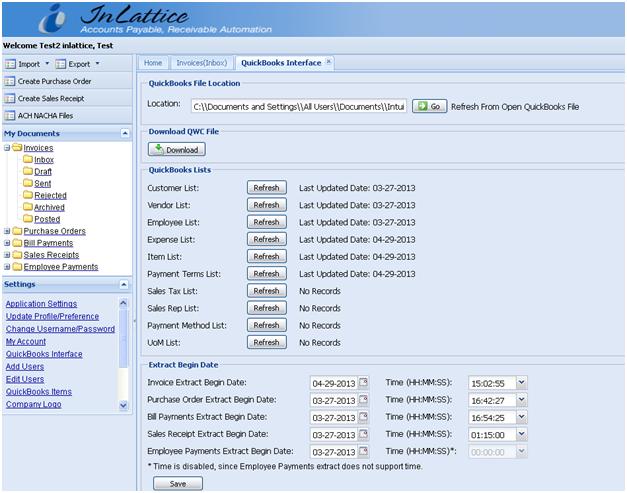
QuickBooks Web Connector file can also be downloaded from QuickBooks Interface screen after logging in.
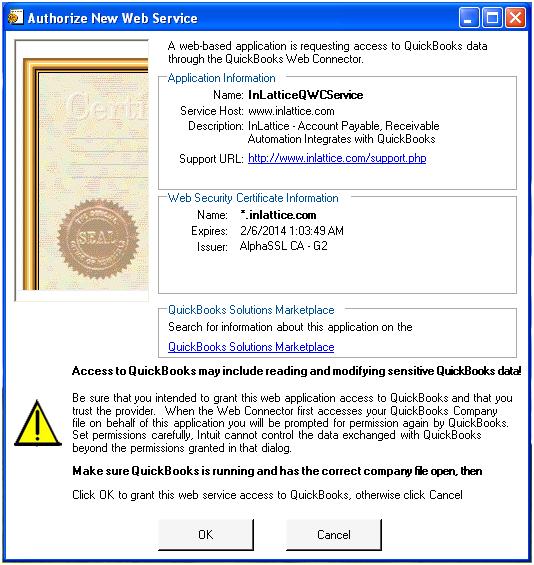
- Setup InLattice with the QuickBooks Web Connector – To begin this step, start QuickBooks on your computer and open your company file. Double click on the saved file InLattice_test2@infonics.com.qwc, the below window appears, click OK.
The QuickBooks Web Connector window will appear with the InLattice application listed.
-
Run the QuickBooks Web Connector – To make InLattice active, follow these two steps:
- Enter your InLattice password into the password field. This is the password that you use when you log in to the InLattice.
- Check the check box in the left column and click “Update Selected”
Note: If you change your password in the InLattice, you will need to change it in the QuickBooks Web Connector window.
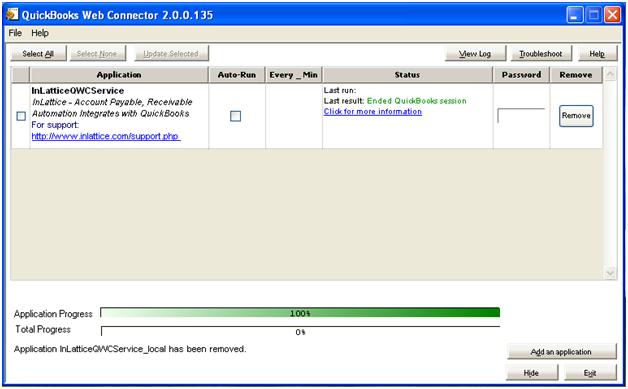
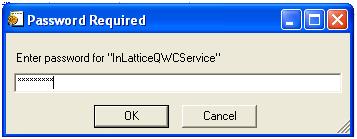
Password can be saved and no need of entering password every time when Web Connector is run.
- Upload QuickBooks Vendor List – This can be done using InLattice > Settings > QuickBooks Interface > Refresh Vendor list option
- Setup Vendor Accounts in InLattice – Go to Settings >Go to Settings > Add users to add vendor accounts to InLattice. Based on your setup, you can also enter vendor bank information here.
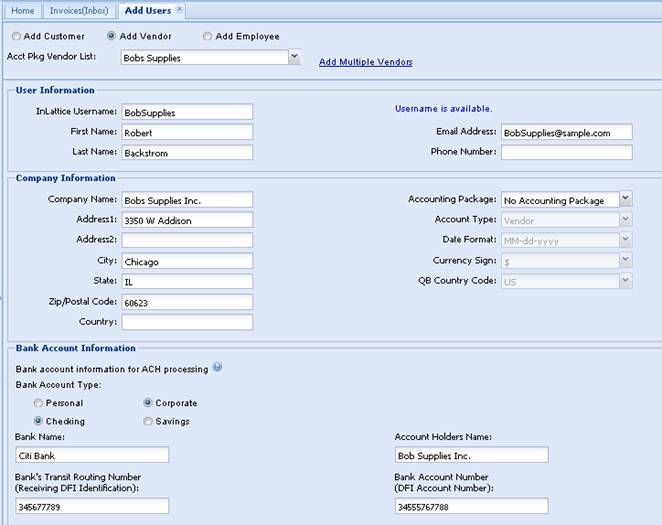
Whenever new vendors added to QuickBooks,
- Upload QuickBooks Vendor List
- Setup New Vendor Accounts in InLattice
Use Settings > Application Settings screen to enable/disable various features of InLattice, setup user preference and banners, header images etc.
- Send Vendor Login information to vendors – You will receive email notification with vendor userid and password. (InLattice Support Team can setup user accounts, after the vendor list is uploaded to InLattice)
If you receive a lot of invoices from Vendors, InLattice can save you quite a bit of time by automating the Bill creation process. As you use InLattice to Post bills from Vendor Invoices, InLattice will learn the mapping that you use from Invoice lines to Bill Lines. Subsequent bills created from same Vendor will be automatically mapped using the previously learned mapping. So, after creating a few bills, new bills can be posted just with a click of a button.
Here’s a quick ‘how to’ Guide
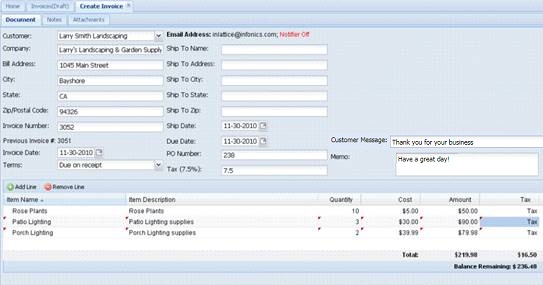
Vendor Creates an Invoice – with Rose Plants, Patio Lighting and Porch Lighting as Line Items.
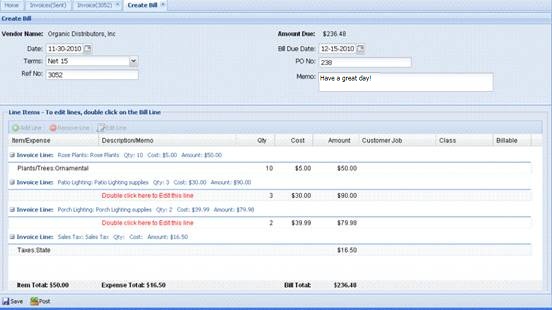
Create Bill – Once this Invoice is received, you will create a Bill, InLattice will automatically map the known items in the Invoice line to Bill Line. Notice that Rose Plants is already mapped however Porch Lighting and Patio Lighting is not mapped since this is the first Invoice from this Vendor using that item.
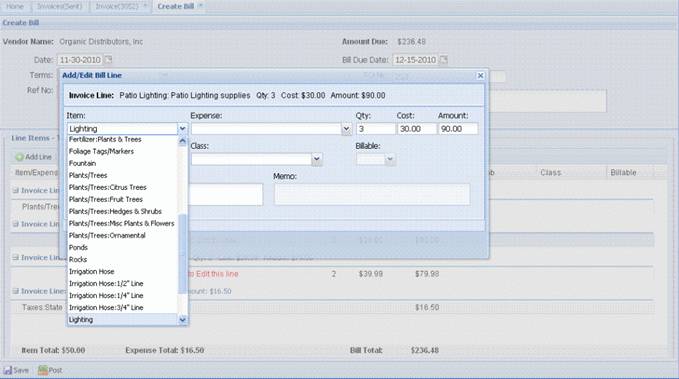
Mapping – You can double clicks on the unmapped Items and manually map them for this Invoice
After mapping, invoices are posted as bills.
Automatic Mapping – When vendor sends a new Invoice with same item
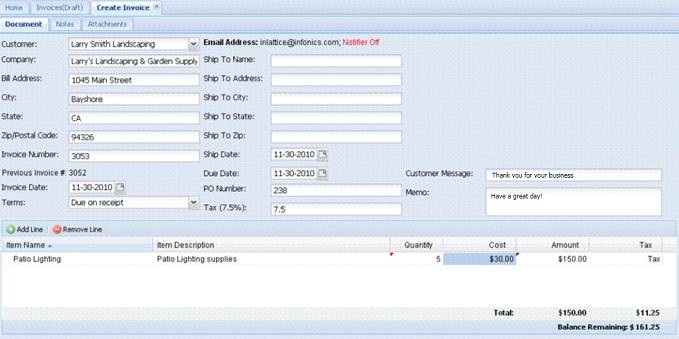
And you try to create the bill, the system automatically maps the Invoice lines to Bill Lines for Patio Lighting (in Invoice) to Lighting (in Bill).
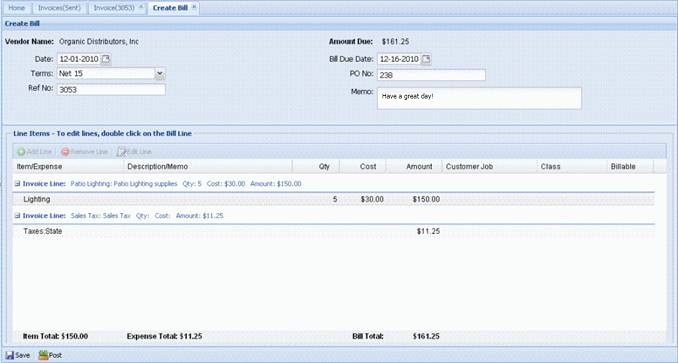
The invoice can be posted as bills, with no data entry.
In summary,
- Vendors creates invoices online
- Attaches any supporting documents
- Sends the invoices
- You will post invoices as bills to QuickBooks, with automatic mapping of invoice line items to bill line items
Notes:
- InLattice also provides a “Bulk Posting” feature which uses the automatic mapping logic and allows posting of multiple vendor invoices with a single click that can save a lot of time and effort
- Also, invoices can be received by the manager and sent account staff, after the approval by the manager
For additional support, please contact us at support@inlattice.com